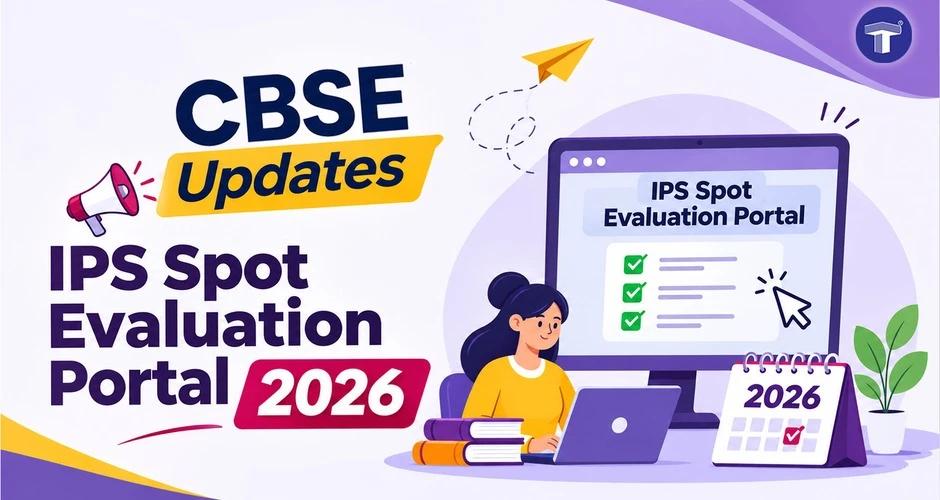
The Central Board of Secondary Education (CBSE) has introduced important updates to its IPS Spot Evaluation Portal 2026 for processing payments to Chief Nodal Supervisors (CNSs), Head Examiners, Evaluators, and other evaluation functionaries involved in the Class 10 and 12 Main Board Examinations 2026.
The portal, launched on 16 September, 2026 has been updated to ensure accurate records and timely payment of allowances and remuneration. CBSE has also issued detailed instructions to help schools complete the data entry and verification process.
Here's what you need to know about the latest CBSE update.
To get more such timely CBSE related updates, follow Education News by Target Publications on WhatsApp.
What Are the Key Updates to the IPS Spot Evaluation Portal 2026?
CBSE has introduced the following changes for Classes 10 and 12 evaluations:
For Class 12:
1. Previously finalised data on the IPS Portal has been deleted and replaced with actual On-Screen Marking (OSM) evaluation data.
2. CNSs must verify the available information and enter the bank account details, IFSC codes, and mobile numbers of the concerned functionaries.
3. Teachers who attended the evaluation centre for the full day but whose login details were not captured in the OSM system can claim conveyance and food allowances.
4. The CNS must submit such claims to the concerned Regional Office for verification and payment.
For Class 10:
1. A new feature has been introduced to record evaluation dates. CNSs must enter the required dates, while the evaluation completion date is already available on the portal.
2. CNSs who have not uploaded the required information or have entered incorrect details can now update and correct their data.
3. A certificate regarding the correctness of data entered on the IPS Spot Evaluation Portal has been incorporated in the system. The CNS must carefully check the certificate and, after ensuring compliance, select the checkbox to confirm acceptance.
CBSE has requested all Chief Nodal Supervisors to complete the required data entry and freeze the data within 15 days from the date of the letter. Attention should be paid to the accuracy of bank account details.
Important Instructions for Filling Data on the IPS Portal
CBSE has outlined specific steps that CNSs must follow while entering and verifying information.
1. Follow the Correct Order of Data Entry
Enter details in the following order:
a) Chief Nodal Supervisor (CNS)
b) Head Examiner (HE)
c) Functionaries
d) Support Staff
A Head Examiner cannot be added before the CNS, and functionaries cannot be added before their respective Head Examiners.
2. Enter Accurate Evaluation Dates
Enter the actual start date for CNS and each Head Examiner and duty start dates for each functionary.
a) Ensure that all dates fall within the evaluation period.
A Head Examiner cannot start before the CNS, and a functionary cannot start before his/her Head Examiner.
b) Enter only the days on which duties were actually performed.
A functionary's days cannot be more than the Head Examiner's days, and no person can be paid for more days than the CNS.
c) For eligible Examiners, Coordinators, and AHEs, mark meeting attendance wherever applicable.
3. Chief Nodal Supervisor (CNS)
- Open the CNS screen and click ‘Add CNS’.
- Enter name (as per bank account), OASIS ID, bank account number and confirm it, IFSC code, Mobile, Number of Head Examiners and Number of Days.
- Number of Head Examiners must be at least the total number of subjects evaluated at the centre.
- Total CNS days cannot exceed the allowed evaluation days.
4. Head Examiner (HE)
- Click ‘Add Head Examiner’, select class then subject, and enter the bank details, copies and days.
- HE copies cannot exceed the assigned copies for the class/subject
- HE days cannot exceed the subject and CNS days limit
- The number of HEs cannot exceed the number declared on the CNS screen.
5. Functionaries
Click ‘Add Functionary’ and select in order: Class → Subject → Head Examiner → Designation.
Available designations under each Head Examiner are as follows:
a) Examiner (Ex): Evaluates Answer Books.
b) Coordinator (Coord): Coordinates evaluation (physical/offline evaluation only).
c) AHE (E): Assistant Head Examiner (Evaluation). AHE are not paid per copy; the number of copies evaluated by the team may be entered for information. The summation of all AHE (E) teams cannot exceed the Head Examiner's copies.
d) AHE (C): Assistant Head Examiner (Coordination) (physical/offline evaluation only). The number of copies coordinated by the team may be entered. The summation of all AHE (C) teams cannot exceed the Head Examiner's copies.
e) AHE (S): Assistant Head Examiner (Subject) (optional). Offered only when the selected subject is 086 or 087 (Class 10 Science/Social Science). The number of AHE (S) is limited to four for subject 087 and three for subject 086. AHE (S) will not appear in the designation list for any other subject. Number of copies are to be entered.
f) Examiner/Coordinator/AHE: Enter OASIS ID, copies and days.
Examiner and Coordinator copies must be realistic for the days entered (very large copy counts for a few days are rejected). Total functionary copies under a Head Examiner cannot exceed that Head Examiner's copies.
6. Support Staff
- Support staffs (MTS, Clerk, IT Person, and clerk for CNS) are not added under a Head Examiner. They should be add on the Support Staff screen. Follow the following steps for the same: Open Support Staff, then add Support Staff button on the Functionaries screen, and add the Multi-Tasking Staff, Clerk, IT Person and Clerk for CNS once for the whole school, not under each Head Examiner.
- Enter only the days of duty actually performed. If the days entered are more than those allowed, the data will not be saved and a message will be flashed on the portal.
At least one MTS and one Clerk for Class 10, and at least one MTS and one IT Person for Class 12 are required before freezing. Clerk for CNS 12 may be filled wherever deployed.
7. Class 12 Data from On-Screen Marking (OSM)
- The Class 12 Head Examiners, AHEs, and Examiners have been provided from the OSM data as it was during the OSM Evaluation. Their duty days and number of copies are given in actual as done in the OSM. Head Examiners and Functionaries screen: Open each Class 12 (OSM) record and click ‘Edit’ to add bank accounts details, correct the spelling of functionary name if any, and enter the OASIS ID.
- Further, where teachers attended the evaluation centre and remained present for the full day, but their login details were not captured in the OSM system, they shall be eligible for payments for the concerned day. For such cases, the CNS shall submit the claims of all eligible teachers to the concerned Regional Office in the offline mode. The Regional Office shall verify the claims and process the payment accordingly to release the payment.
The Delete button is not shown for these records, because the data is from OSM portal.
8. Review
- If the dashboard shows that records need to be reviewed, open the ‘Review Screen’ and confirm each record.
- For each record enter the start date and confirm the days and number of copies. The data cannot be frozen until every record is reviewed.
9. Validate and Freeze
- On ‘Freeze Payment Details’, use validate data to check all entries without finalising.
- Tick the declaration checkbox and click ‘Freeze’ to finalise. The system re-validates and blocks freezing if any issue remains.
- The IFSC code entered must be a valid code present in the bank directory, otherwise you will be asked to re-check it.
- Some team-composition issues may not fit every school. In these cases, if data is correct, open review/accept exceptions from the list of issues, and accept the issue with a reason. Accepted exceptions are printed on the certificate. All other issues must be corrected.
Note: After freezing, you cannot further add, edit, or delete. If a correction is needed, the data can be unfrozen from the ‘freeze payment details’ screen for a limited number of times, and only until you certify the data.
10. Certify Data
- After freezing, open ‘Certify Data’ and open the certificate to check the figures. The certificate also lists any exceptions you accepted.
- Confirm the total number of beneficiaries, the total amount, and the certificate reference no. shown, then tick the declaration and certify. Certifying is final after it, the data can no longer be changed.
- The payment shall be processed on the data certified by CNS.
Therefore CBSE requests CNS to personally review the data and ensure that all details are entered correctly. In case of erroneous bank accounts details resulting in wrong payment, Board shall not be responsible. A facility to download the report and statistics is given in the Portal. CNS may download the data and keep them for records or further reference.
11. Bank Account Rules
- The same Account Number + IFSC cannot be assigned to two different people in your school.
- The same person doing multiple duties should be entered with the same account and the same name. Minor spelling/word-order differences are accepted; a different name on the same account is rejected.
Important Links
| CBSE to Train Maharashtra Teachers on Mandatory Skill Education Implementation | CBSE Announces Capacity Building Programme for Teachers on Introduction to Financial Markets |
Conclusion
The latest CBSE IPS Spot Evaluation Portal 2026 update aims to streamline the payment process for Classes 10 and 12 examination evaluation functionaries. CNSs must follow the prescribed instructions, verify every entry, and complete the freezing and certification process within the given deadline to ensure accurate payment processing.
Source
Official Notice by CBSE, 11 November, 2026: Click here to read.
Kindly note that any and all information is subject to change as per CBSE, the Education Ministry, and Government of India.